Create an account
There are three ways to get a PhoneMail address. All of them prove the number is yours with a text message; none needs a phone call.
| Way | Best for |
|---|---|
| Sign-up portal on the web | Creating accounts quickly, even for someone else at a help desk |
| Text JOIN from your phone | People without a computer or internet |
| First sign-in on the web or app | Everyone else: signing in with a new number creates the account |
On the sign-up portal
Open https://mail.phonemail.net/register/. The portal has just two fields, Phone number and OTP, and only creates accounts: it never signs the browser in.
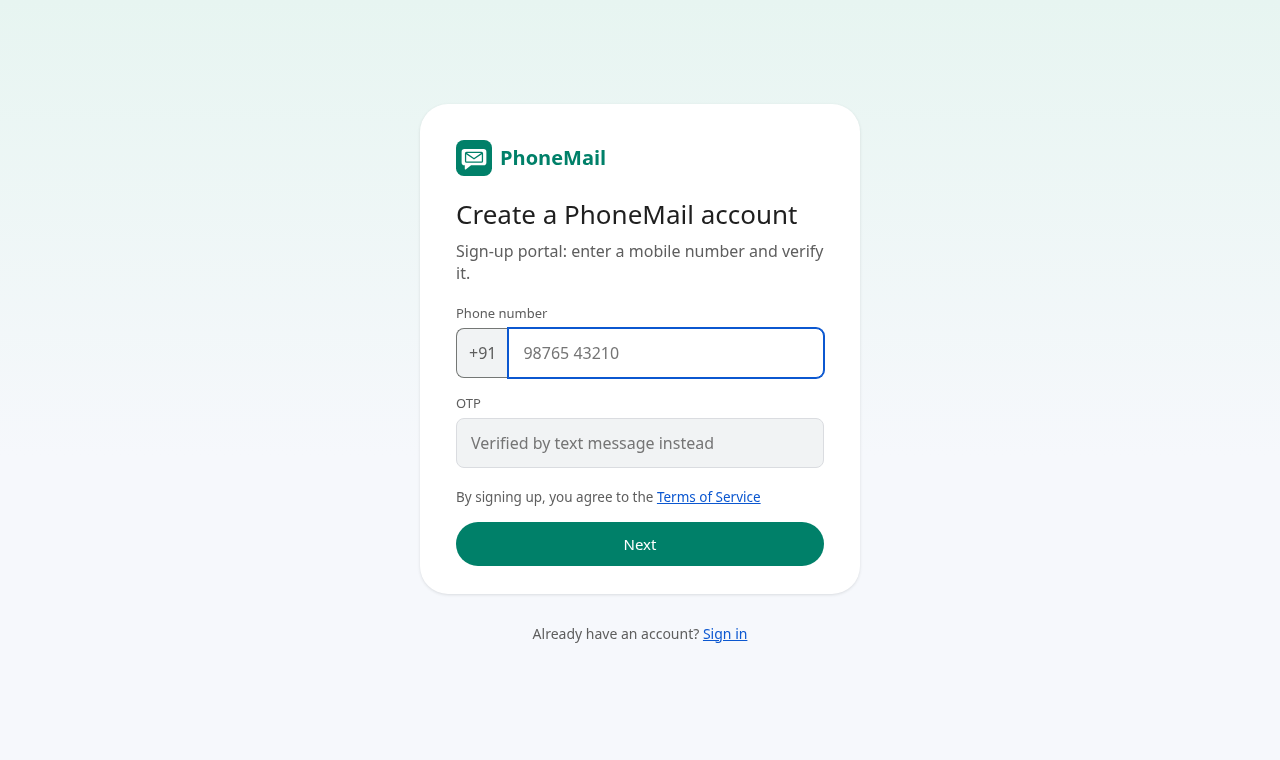
- Type the 10-digit mobile number and press Next.
- If a one-time code (OTP) can be sent to that number, type it in the OTP field and press Create account.
- Otherwise the portal asks you to verify by sending a text: it shows a short code such as
JOIN K7Q2MXand a QR code.
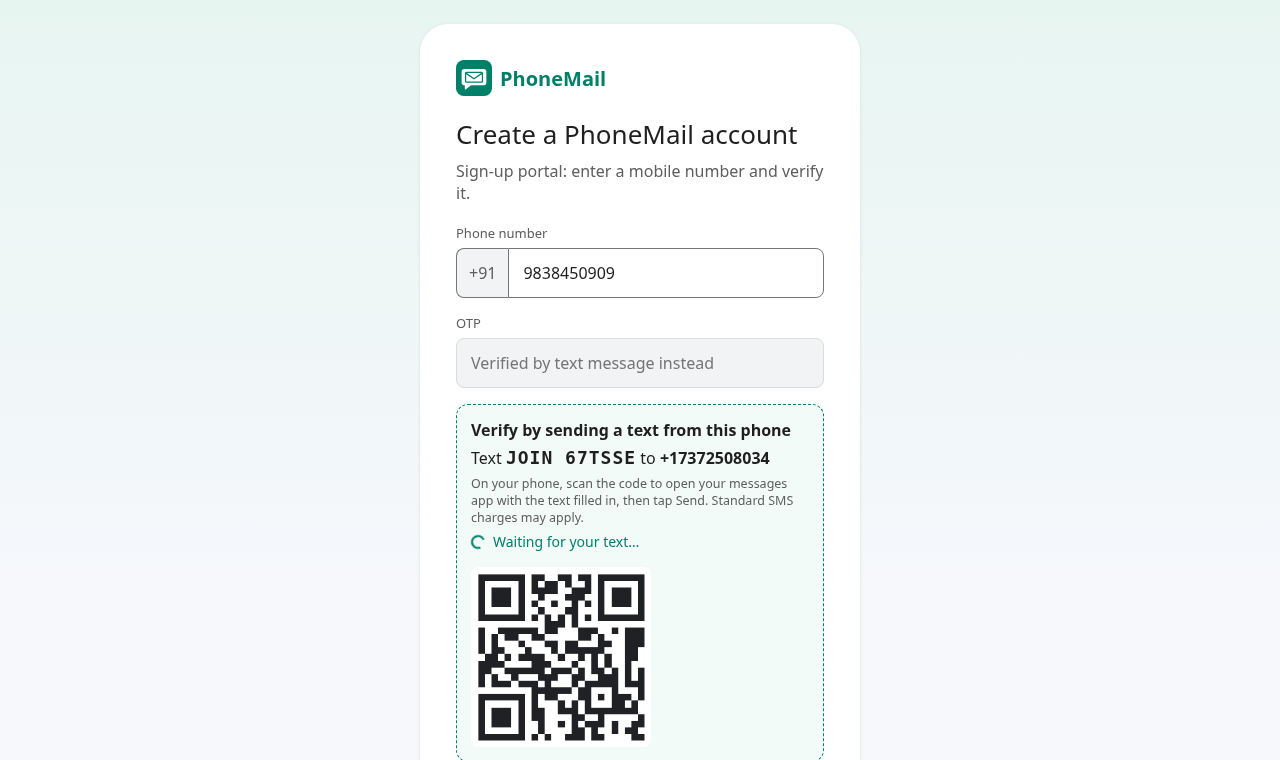
- On that phone, scan the QR code with the camera. Your messages app opens with the text already filled in; tap Send. (Or type the text yourself and send it to the number shown.)
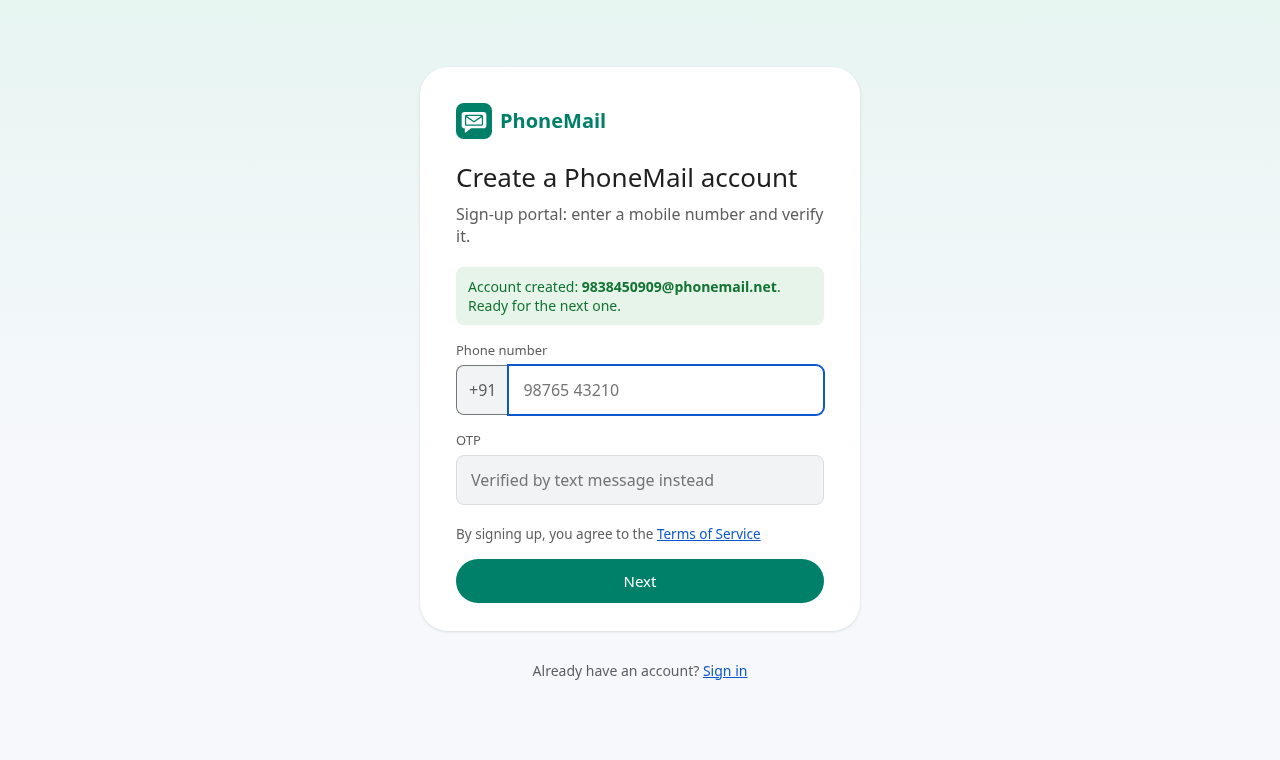
- Within a few seconds the portal shows Account created with the new address, and clears both fields for the next person.
By text message only
From the phone you want an address for, send a text to the PhoneMail number (+1 507 800 0027):
| Text | What happens |
|---|---|
JOIN | Creates <your number>@phonemail.net |
JOIN Ravi Kumar | Same, and sets your name to Ravi Kumar |
JOIN K7Q2MX | Uses the code shown on a web page or app, and signs that screen in |
Capital or small letters both work. Sending JOIN again later does not create a second account.
Text messages
Sign-in codes are sent by text only; PhoneMail never calls. The PhoneMail number is a US number, so sending JOIN from another country is charged by your operator as an international text.