On your phone
In the phone's browser
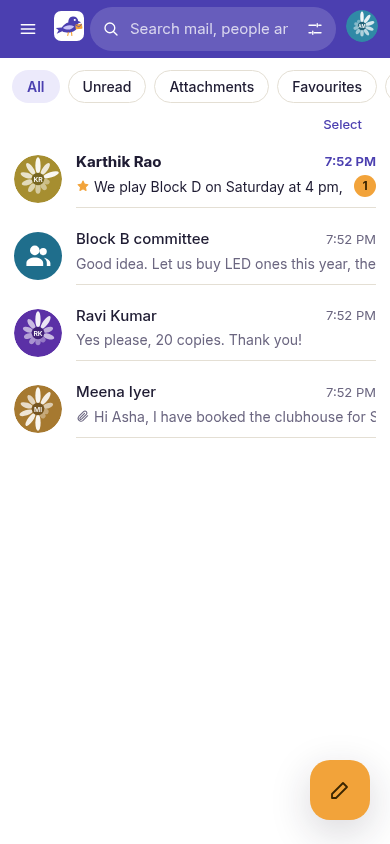
Open https://mail.phonemail.net in your phone's browser. On a narrow screen PhoneMail looks like a chat app:
- Your conversations are a chat list, with chips along the top to filter it: All, Unread, Attachments, Favourites (starred), Snoozed and All mail.
- Select (at the top right of the list) shows tick boxes, to archive, delete, mark or snooze several conversations at once.
- The round pencil button at the bottom right writes a new email.
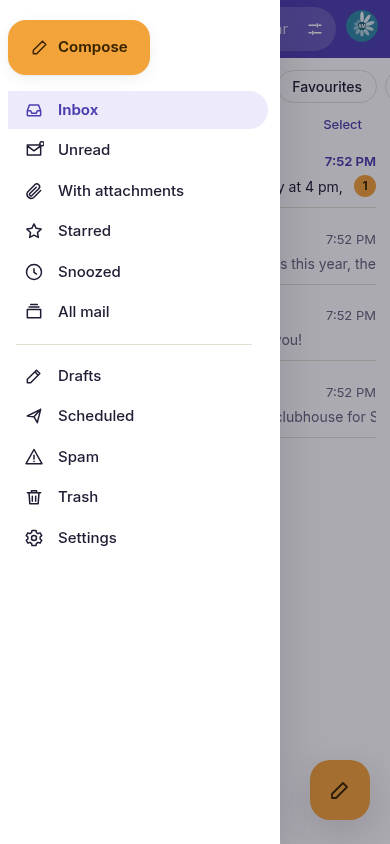
- ☰ at the top left opens the full menu, with Drafts, Scheduled, Spam, Trash and Settings.
| Inbox | Menu |
|---|---|
 |  |
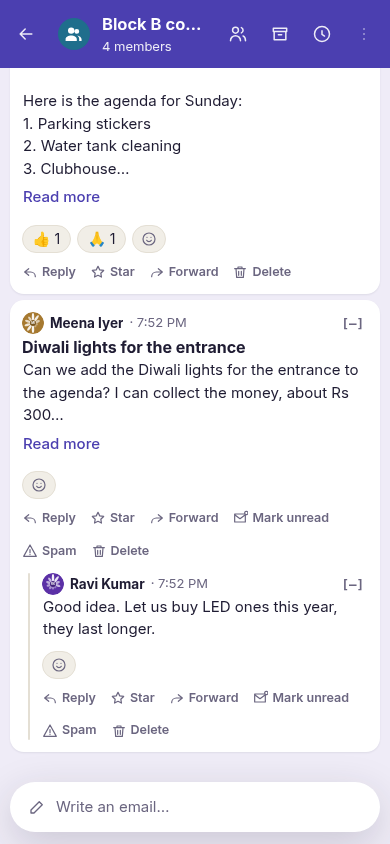
In a conversation, each reply sits under the email it answers, joined by a line, like a discussion thread. Tap [–] to fold a reply and the ones under it. Swipe an email to the right to reply to it, or use the buttons under it. Write an email… at the bottom starts a new email to the same people.
The PhoneMail apps
Native apps for Android and iPhone are being tested: the Android app (with its Wear OS watch app) in a closed test on Google Play, the iPhone app (with its Apple Watch app) in App Store review. They use the same account as the web: sign in with the same number, and you see the same conversations, groups and settings.
Contacts
After you sign in, the app explains how it would use your contacts, then Continue shows your phone's own permission question, where you choose Allow or Don't Allow. With access, typing a name suggests people (for example, type "Asha" to email Asha at her PhoneMail address) and chats show the names you saved. PhoneMail reads only names and phone numbers, on the phone itself: your contacts are never uploaded. Everything works without contacts access; you can change your answer later in your phone's settings (Settings → PhoneMail on iPhone, Settings → Apps → PhoneMail → Permissions on Android).
While you are signed in to one of the apps, PhoneMail does not send you text alerts.
Tap your picture at the top right of the chat list to open Settings.
The menu
Tap ☰ at the top left. It has the same places as the web: Inbox, Unread, With attachments, Starred, Snoozed, All mail and Archived; then Drafts, Scheduled, Spam and Trash; then Folders, your own folders with their unread counts and New folder; and Settings. The chips along the top of the chat list (All, Unread, Attachments, Favourites) are a quicker way to the first few.
Doing things to several chats
Touch and hold a chat (or tap Select) to tick it, then tick more. The bar that appears can archive, delete, mark as read, mark as unread, snooze or move to a folder them all at once; in a folder it can also remove them from the folder. On iPhone you can also swipe a chat to the left to archive or delete it.
In a chat, the ⋯ menu (⋮ on Android) has Archive, Snooze, Mute, Move to folder…, Mark as unread and, in a one-to-one chat, Block. Folders work as on the web: see Your own folders.
Light and dark
The apps follow your phone's light or dark setting. To choose yourself, go to Settings → Appearance and pick System, Light or Dark.
Block someone
- Open your chat with them.
- Tap ⋯ at the top right (⋮ on Android) and choose Block, then confirm.
Their emails then go to Spam, without an alert. Groups you share are not affected. To undo it, choose Unblock in the same menu, or go to Settings → Blocked people → Unblock. You can also block the sender from the ⋯ menu of any email they sent you.
Report spam
Open the email and tap Report spam. It moves to your Spam folder; only your copy changes. To bring it back, open it from Spam and tap Move to Home.
Delete your account
- Go to Settings and tap Delete account at the bottom.
- Type your password. If you have no password, tap Send me a code by SMS and type the code.
- Tap Delete my account.
This erases your number, profile, aliases and your copy of every email, and signs you out. Emails you sent stay with the people who got them, shown as from "Deleted account". It can't be undone. The same option is in Settings on the web.
On your watch
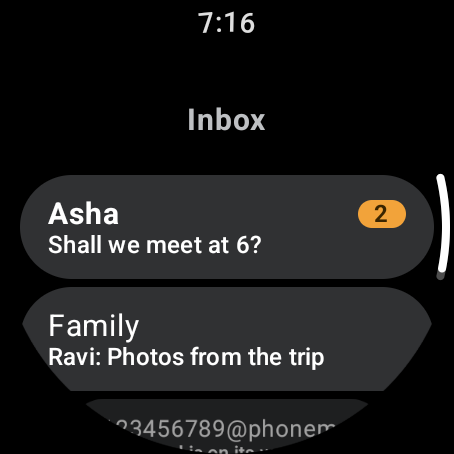
PhoneMail has a small app for the Apple Watch (installed with the iPhone app) and for Wear OS watches (installed from Google Play on the watch). Both show:
- your Inbox, newest first, with the number of unread emails in each chat;
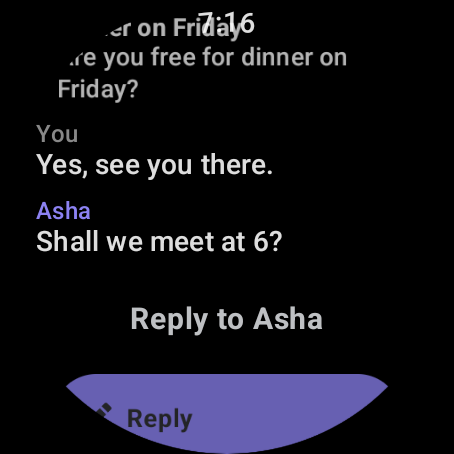
- a chat, oldest email first; opening it marks it read;
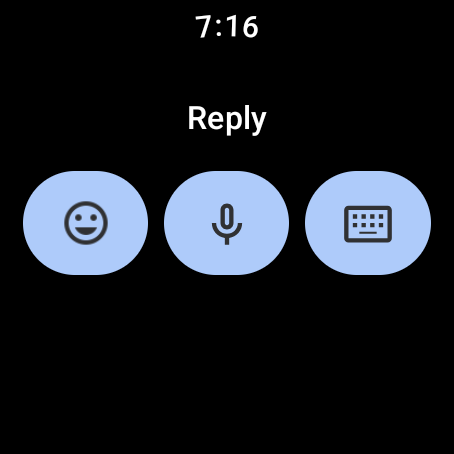
- a reply to the newest email from someone else: dictate, type or scribble it with Reply, or tap one of the quick replies (OK, Thanks!, On my way, Call you later), which send at once.
You don't sign in on the watch: open PhoneMail on your phone and the phone signs the watch in (and signs it out when you sign out). Until then the watch says "Open PhoneMail on your phone to sign in." The watch uses the language you chose in the phone app.
| Inbox | Chat | Reply |
|---|---|---|
 |  |  |
New-mail notifications also appear on your watch, with Reply and Mark as read, whether or not the watch app is installed.